Digital Privacy
When Brave Flagged My Colour Picker as Malware, I Rebuilt It With Claude
After Brave flagged my colour picker as malware, I rebuilt my browser extensions with Claude. The Chrome Web Store has a supply chain problem.
6 May 2026 · 9 min read · By Sophie Kazandjian
The Chrome Web Store has a supply chain problem. This is what happened when Brave caught one in my browser, what I replaced, and how I now build the simple tools I rely on so I can read every line of the code.
I opened Brave to start work and a small notification was waiting for me. The colour picker extension I had been using for months, the one I reach for several times a week when I am pulling brand colours from a client mock-up, had been disabled. The reason: This extension contains malware.
I stared at it for a moment. I am careful about what I install, I pay attention to permissions, and I write about ethical tech for a living. There it was anyway, sitting in my browser, doing whatever it had been doing for who knows how long.
The first thing I felt was not panic but something quieter, a kind of tired recognition that the model we have all been working under, where the Chrome Web Store acts as a trusted gatekeeper and a green verified badge means something, is more fragile than most of us treat it.
The supply chain problem nobody warns you about
Brave runs on Chromium, the same engine as Chrome, which means it pulls extensions from the Chrome Web Store. Google's review process is the floor most of us are standing on whether we use Chrome or not, and that floor has been giving way.
The pattern is consistent enough now that security researchers have a name for it. An extension is built by a legitimate developer, gathers a user base over years, and earns a verified badge and a high rating. Then the developer sells it. The new owner pushes a quiet update that adds tracking code, ad injection, or session hijacking. The ratings stay high because the extension still works as advertised, and most users never notice that anything has changed.
In July 2025, Koi Security documented a colour picker with over 100,000 users that had been a legitimate tool for years before its update at the end of June poisoned it with sophisticated spyware. The malicious code lived in the extension's background service worker and monitored all tab activity, despite the extension carrying a verified badge and featured placement in the store. The same investigation uncovered a wider campaign called RedDirection covering 18 cross-platform extensions and around 2.3 million users.
A few weeks ago, researchers at Annex Security found that another widely used colour picker, with over 400,000 users and a featured listing, had introduced encrypted tracking routines in a recent update. The encryption served no purpose for an extension whose only job is to read pixel values from a screen, which suggested it was there to obscure what data was being sent and where.
The widely-used colour picker Brave flagged on my machine was a known one of these cases. I removed it, cleared my browser data, ran a malware scan, changed a handful of passwords as a precaution, and moved on. The point is the pattern, and the pattern says the Chrome Web Store is no longer a place where verified status tells you what you think it tells you.
A duty of care issue, not a personal preference one
If you are a sole consultant or a small operator, your browser is where most of your sensitive work happens, from client logins and email through to Squarespace admin, Mailerlite, Airtable, Xero and banking. A compromised extension on that profile is not the same as a compromised extension on a teenager's gaming laptop. It is a higher-value target with broader reach into other people's data.
I think about this often when I am writing about digital ethics. The risk to me is also a risk to my clients, because the boundary between my work environment and their work environment is whatever browser tab I happen to have open at the time. Which means the question of which extensions I trust is a question of duty of care.
What I did next
After removing the colour picker I went through every other extension I had installed and asked the same three questions of each: do I know who currently owns this, can I read what it actually does, and are the permissions it asks for proportionate to its job.
A few passed easily. Bitwarden is reputable, well-audited, and the password manager I would recommend to anyone. The Claude extension is Anthropic's own. Squarespace ID Finder is a tiny dev tool from a known source.
A few did not. The screen recorder I had been using for client demos asked for tabs, storage, unlimitedStorage, desktopCapture, tabCapture, cookies, activeTab, scripting, and host permissions on every URL I visit. The combination of cookies and scripting on all URLs means it can read authentication cookies on any site I am logged into and inject code into any page, which is a lot of trust to extend to a piece of software whose ownership history I cannot verify. A June 2025 vulnerability report had also flagged that same extension as exposing AWS access keys used for screenshot uploads, so I removed it.
For some of those things, the right answer is to use a desktop tool that does not need to live inside the browser at all. For screen recording on Windows, the built-in Snipping Tool now handles both stills and video, and ShareX (free, open source) is the better option if you want more capability. For colour picking outside the browser, Microsoft PowerToys includes a system-wide picker that works on anything on your screen, including non-browser applications. Both are first-party or open-source tools that update from sources I can verify.
That left three extensions I wanted to keep using inside the browser. A colour picker that works on web pages, because most of my colour-picking is for client websites and brand mock-ups loaded in tabs. A notepad for catching things while I am browsing: code snippets, passing thoughts, URLs I want to come back to. And a screenshot tool, because alt-tabbing to a desktop application every time I want to capture something on a client site is the kind of small friction that adds up across a working week. So I built my own versions of all three.
A notepad I can read every line of
The notepad came first because it was the simplest of the three. I told Claude what I wanted: a popup that opens when I click the extension icon, multiple notes with titles rather than one big text area, stored locally in the browser and never sent anywhere, with an export button to download all the notes as a text file when I wanted a backup.
Claude asked three clarifying questions about where notes should appear (popup, sidebar or new tab page), what features I wanted, and where they should be stored. I answered: local only, multiple notes, popup, with export. Claude then wrote the manifest file that tells Brave what the extension is, the HTML for the popup, the CSS for the styling, the JavaScript for the logic, and three small icon files. All of it sat in a folder I could open in any text editor and read line by line. The whole thing took under twenty minutes including reading through the code.
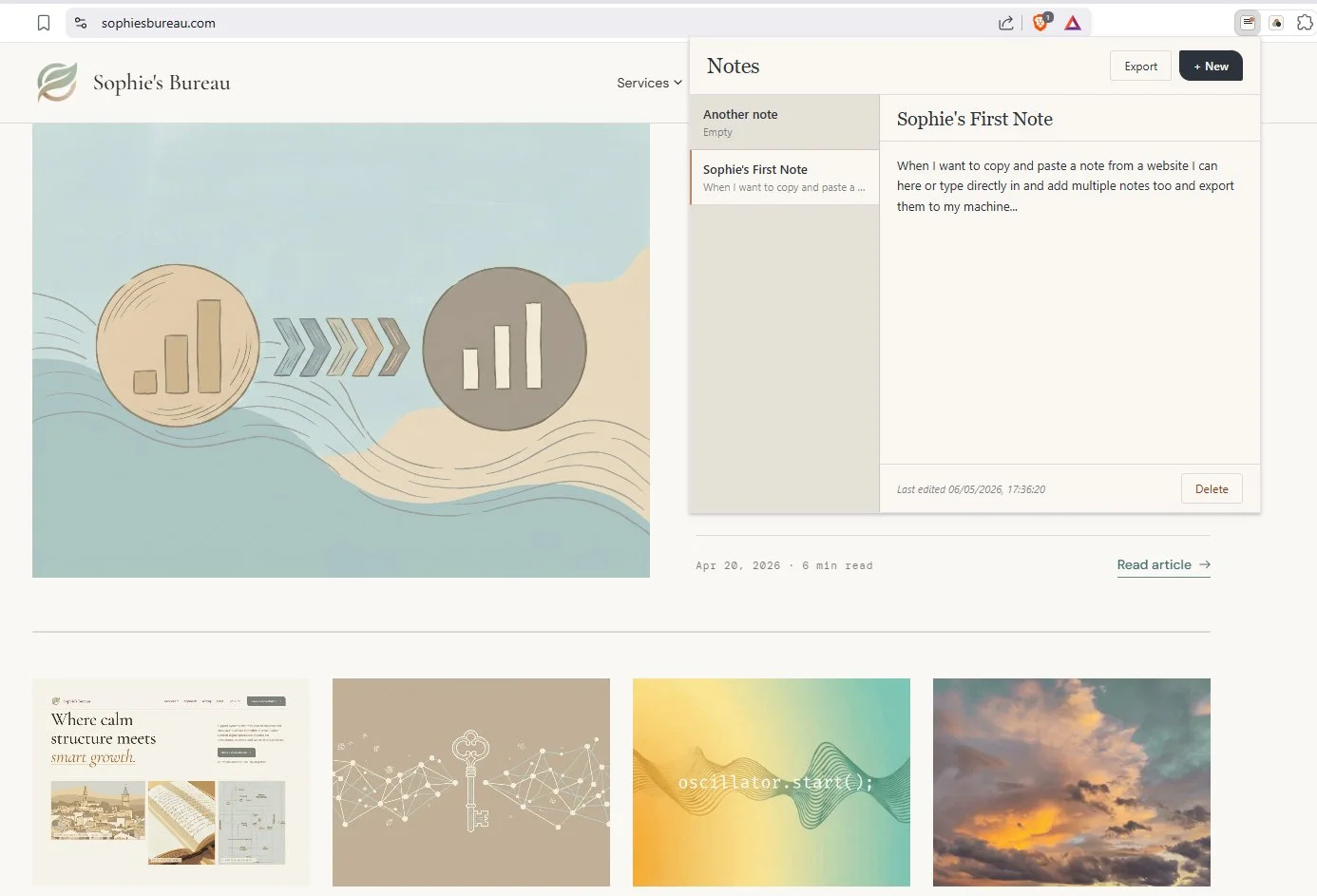
The manifest file is the bit that does the most work in conversations like this, because it declares what permissions the extension wants. Mine asks for one, called Storage, which lets the extension save data locally in Brave's own storage area on my hard drive. It does not let the extension read web pages, see what tabs I have open, access cookies, or talk to any external server. A notepad does not need any of that, and mine does not have any of that. Because I can read the code, I know.
A colour picker that uses what the browser already provides
The colour picker was the more interesting build, because modern browsers now ship with a built-in colour picking API called EyeDropper. The browser itself handles the actual pixel reading, draws the magnified loupe on the cursor, and returns the hex value when you click. The extension's job is essentially to call that API and present the result.
This matters for two reasons. The extension I built does not need access to the contents of any web page, because it does not need to capture screenshots, parse images, or run code on the pages I visit; it calls the browser's built-in API, the browser does the work, and the result comes back. And this is exactly the API that the malicious colour pickers were not using, because the EyeDropper API is too constrained for their purposes. They needed broader page access in order to do all the other things they were doing.
My version asks for one permission only, Storage, so it can remember the last sixteen colours I picked and let me copy them again later. It has no tab access, no host permissions, no access to URLs, no cookie access, no tab capture and no screen capture.
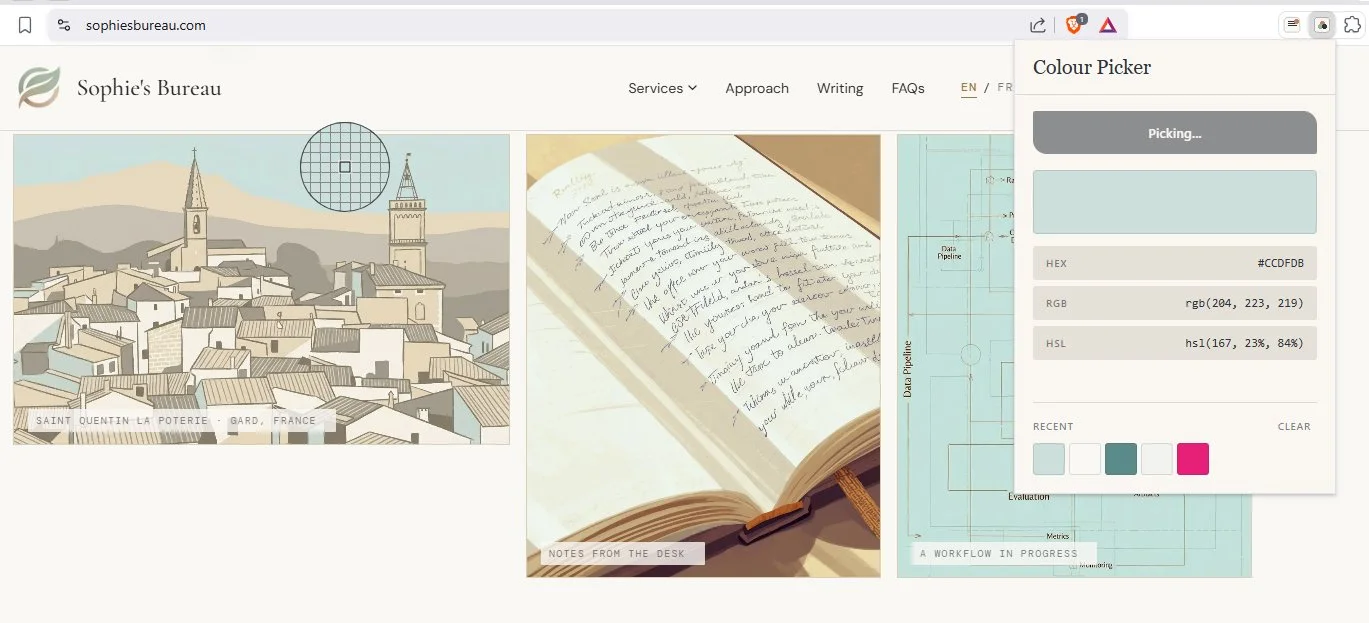
Click the icon, click Pick a colour, and the cursor turns into a loupe. Hover over any part of any web page, click, and the hex value, RGB value, and HSL value appear in the popup. Click any of the three to copy that format to my clipboard. The recent picks live as a small grid of swatches at the bottom. That is the whole thing, around 200 lines of code which I can read and so can anyone else who installs it.
What it cannot do
Because the extension uses the browser's built-in API, it works inside the browser viewport. It will pick colours from any web page you can see in a tab, but it cannot pick colours from outside the browser, from images open in another application, from your desktop wallpaper, or from anything else on your screen.
For that, PowerToys is what I use. It is free, open source, made by Microsoft, and includes a system-wide colour picker as one of its tools. Press Win+Shift+C, click anywhere on screen, and the value copies to your clipboard. Different tool for a different job, and there is no good reason to ask my browser extension to do something my operating system can already do better.
A screenshot tool that captures the page and nothing else
The screenshot extension was the third one I built, and the one I have ended up using most often. The category is full of compromised options, often with broad permissions and uploads to whatever cloud service the developer happens to be running, which is exactly the wrong arrangement for capturing client portals, admin screens, or anything else with sensitive content on it.
I told Claude what I wanted: a popup that lets me capture the visible viewport, the full page, or a region I draw with my cursor, with a small preview before I commit to anything, and a choice of PNG or PDF on download. Nothing leaves the machine.
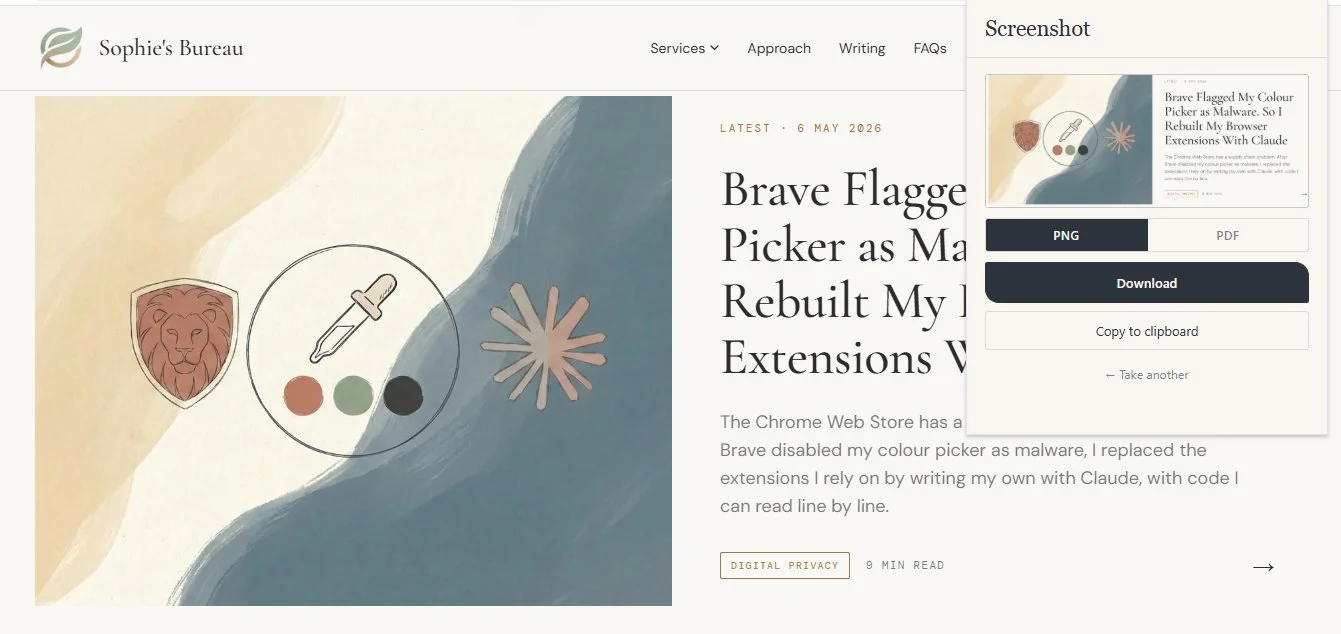
It captures inside the browser tab and nowhere else. The image lives in the popup until I download it or copy it to my clipboard, and then it is gone. There is no upload, no cloud sync, no account, no telemetry. The PDF generation uses a bundled open-source library (jsPDF, MIT licensed) that runs entirely inside the popup, so nothing reaches out to the internet. The extension asks for activeTab and scripting, both scoped to the tab I am actively capturing, plus storage for remembering my preferences between sessions.
The convenience of having a capture tool one click away inside the browser, rather than alt-tabbing to a desktop application, is what I had been getting from a third-party extension whose ownership I could not verify. The convenience is the same. The difference is that I wrote the code, and I can read every line of it before I install it on the machine I do client work on.
The principle
I am not going to walk through every line of code in this article, because the specifics will change depending on what you are building. The principle is what is worth taking away.
For extensions that depend on infrastructure someone else has to maintain, such as password sync across devices, anything talking to an external service, or anything with a real backend, you still need a third-party product, and the question becomes which third party you trust and why. Bitwarden, audited and open source, is a different proposition to a four-star colour picker from a company you have never heard of.
For extensions that do something simple and self-contained, especially anything that is just a wrapper around browser APIs the browser already provides, you have an option now that you did not have two years ago. You can describe what you want to Claude, and it will ask clarifying questions, write the code, and let you read it. You can install it. The extension only ever exists on your machine, never goes through any store, and never auto-updates from a third party. It is yours.
To install one of these extensions in Brave, go to brave://extensions, toggle Developer Mode on, click Load unpacked, and point Brave at the folder containing your code. Brave will sometimes nag you on startup that you have a developer-mode extension installed. This feels alarming the first time, but it is normal, and it is fine when you wrote the code yourself.
One small wrinkle worth knowing about. When you install an extension via Load unpacked, Brave loads it from the folder you pointed at and continues to read from that folder every time the browser starts. If you move the folder, rename it, or save it inside a sync service like OneDrive or Dropbox where the path can flicker, Brave will sometimes drop the extension and you will have to reinstall it. The fix is to put your extension folders somewhere permanent and dull. I keep mine in C:\BraveExtensions and never touch it. Brave will also occasionally run a Safety Check that flags developer-mode extensions as potentially unsafe, with a Remove all button that does exactly what it says. Read the prompt carefully and dismiss it rather than clicking through. The extensions you wrote are not unsafe; Brave simply cannot verify their provenance because they did not come from the Web Store, which is the entire point.
Where the line sits
I am not telling everyone to build their own version of every extension they use. The dividing line is whether the thing the extension does is simple and self-contained, or whether it relies on infrastructure that someone else has to maintain. A notepad, a colour picker that wraps a built-in browser API, and a screenshot tool that uses the browser's own capture API all sit on the simple side; password sync across devices, real-time collaboration, and anything talking to a paid SaaS backend do not.
What I am saying is that for the simple ones, you have an option now. You can opt out of the Chrome Web Store, and opt out of trusting whichever new owner bought the extension last quarter and what they decided to do with it. The Chrome Web Store is convenient, but it is also opaque. The same extension can be safe today and compromised next week, and you will not know until either Brave's malware detection catches it or you get unlucky.
I am not interested in writing more articles about the dangers of browser extensions. There are plenty already, and they tend to end with the advice to "be careful what you install," which is useless because nobody installs malware on purpose. The advice that is actually worth giving is that you can now write your own simple tools, and you should know that.
If you would like to try this
A few people have asked whether I would put these on the Chrome Web Store as free downloads. I have thought about it. The answer for now is that if there is interest, I would consider publishing them as unlisted, privacy-first alternatives to the compromised tools they replace. No telemetry, no upgrades to a paid tier, no change of ownership. If that is something you would use, let me know and I will think more seriously about the work involved.
If you would like a hand thinking through what to ask Claude for, or if you would like to talk about which of your tools could be replaced this way and which could not, that is the kind of conversation I have with clients all the time. It is part of the Digital Operations Partner work I do. Get in touch.
The smaller point worth leaving you with is that the question to ask about any tool you depend on is not whether it is safe right now, but whether you would notice if it stopped being safe. The Chrome Web Store model is built on the assumption that someone else is checking. Building your own version, even occasionally, even only for the simple things, changes who that someone is, and changes it to you.
Last updated: 8 May 2026
Want practical pieces like this delivered occasionally?
Sign up for the Sophie's Bureau newsletter. Practical advice on ethical tech, workflow templates, and a sprinkle of digital calm straight to your inbox.
Related reading: Brave Browser for Business · AI Prompt Injection Risks and Why No AI Browser Is Fully Safe · Cloudflare Workers Changed How I Think About Protecting Digital Products · Rebuilding My Website With Claude in Two Days